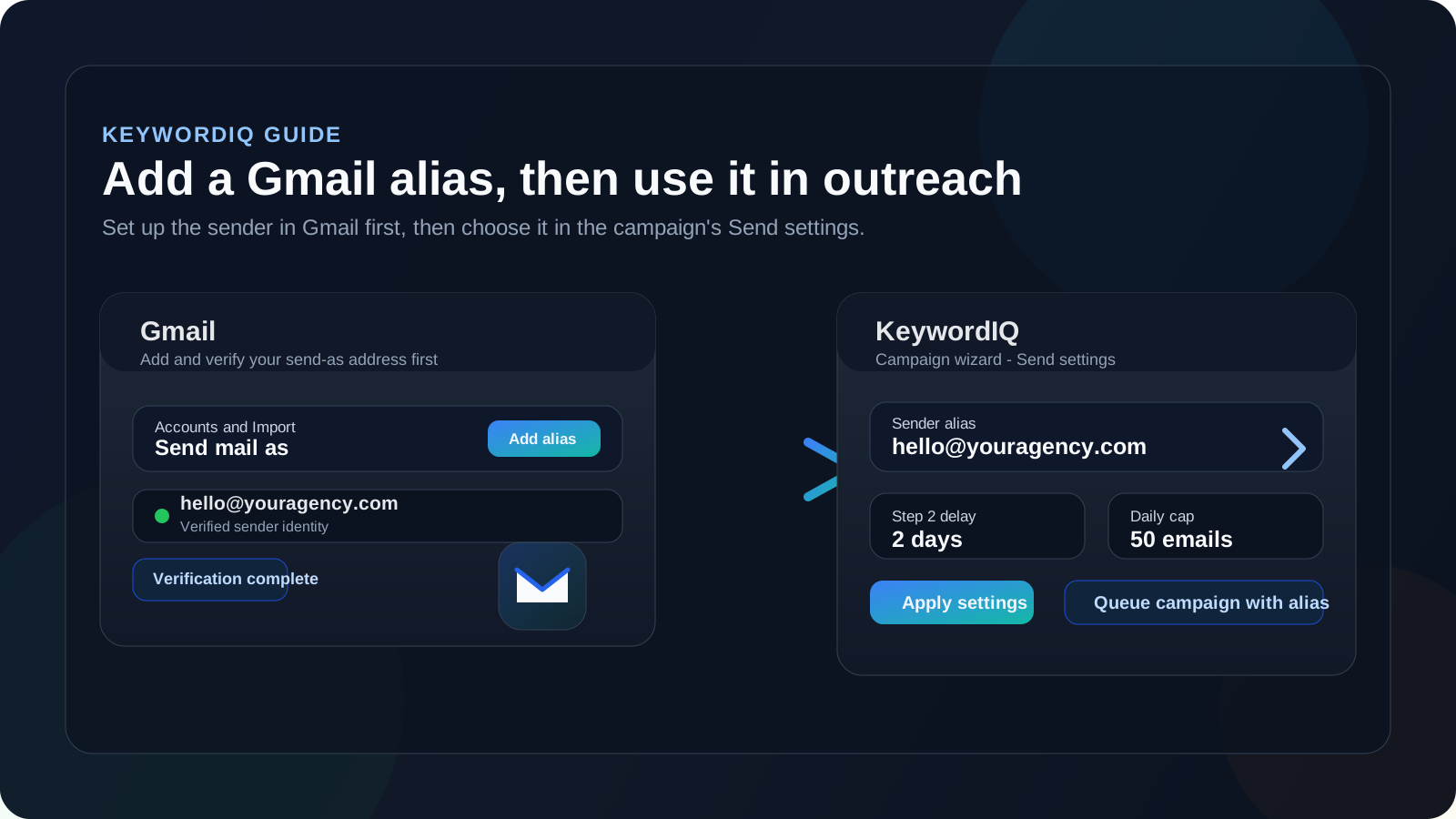
If you want your KeywordIQ outreach campaigns to send from a branded address like hello@youragency.com instead of your main Gmail address, the setup happens in two parts.
First, you add and verify the alias in Gmail. Then, inside KeywordIQ, you choose that alias in the campaign's Send settings before queueing the sequence.
The key point is simple: KeywordIQ can only offer sender aliases that Gmail already knows are valid for that mailbox.
Before you start
Make sure you have:
- a Gmail mailbox already connected to KeywordIQ
- the email address you want to send from, such as
hello@youragency.com - access to that mailbox so you can receive the Gmail verification email
- the outgoing SMTP details for that mailbox if your provider requires them
For many personal-domain inboxes, Gmail will ask for:
- SMTP server name
- username
- password or app password
- the correct port and encryption type
If you are unsure, get those details from the company that hosts your email.
Step 1: add the alias in Gmail
Open Gmail on desktop, then:
- Click the gear icon in the top right.
- Click See all settings.
- Open the Accounts and Import tab. In some Google account setups, this may appear as Accounts.
- In the Send mail as section, click Add another email address.
- Enter the name you want recipients to see and the email address you want to send from.
- Click Next Step.
- If Gmail asks for SMTP details, enter the outgoing mail server, username, and password for that address.
- Click Send verification or Add Account, depending on the flow you see.
At this stage, Gmail has the alias saved, but it is not ready yet until you confirm ownership.
Step 2: verify the alias
After Gmail sends the verification message:
- Sign in to the mailbox you just added.
- Open the Gmail confirmation email.
- Click the verification link, or copy and paste the confirmation code if Gmail shows that option.
Once that is done, Gmail can send mail from that address.
If the verification email does not arrive, check spam or junk folders before trying again.
Step 3: confirm the alias works in Gmail
Before using the alias in KeywordIQ, it is worth checking that Gmail itself can see it.
- In Gmail, click Compose.
- Open the From field.
- Confirm that the alias appears as a sender option.
If it does not appear there yet, the alias is not fully verified or Gmail has not finished applying the change.
Step 4: open your outreach campaign in KeywordIQ
Now switch back to KeywordIQ:
- Open Outreach.
- Open the campaign you want to send.
- Move to Step 4 of 4 — Review & queue.
This is the stage where you review drafts, choose the sender mailbox, and confirm how the sequence should be sent.
Step 5: choose the connected Gmail mailbox
In the Sender mailbox card, select the Gmail mailbox that owns the alias.
This matters because KeywordIQ reads available sender aliases from the specific Gmail mailbox you have selected. If you choose the wrong mailbox, the alias you want may not appear in the next step.
Step 6: open Send settings and select the alias
In the review and queue toolbar, click Send settings next to Queue all.
Inside the modal:
- Find the Sender alias dropdown.
- Open the list.
- Select the alias you added in Gmail.
- Review any other settings you want to adjust, such as:
- step delays
- daily cap
- jitter
- Click Apply settings.
Back in the campaign wizard, the summary under the toolbar should reflect the currently selected send configuration.
Step 7: queue the campaign
After the alias is selected:
- Review the drafts you want to send.
- Click Queue all or queue only the selected contact sequences.
KeywordIQ will then queue the campaign using the sender alias you chose in Send settings.
What to do if the alias does not appear in KeywordIQ
If the alias is missing from the Sender alias dropdown, check these points in order:
1. The alias was never verified in Gmail
If Gmail has not confirmed ownership, KeywordIQ will not be able to use it.
2. You selected the wrong mailbox in the campaign
Choose the Gmail mailbox that actually owns the alias.
3. Gmail has not finished updating
Refresh the campaign page after verifying the alias in Gmail. KeywordIQ reads sender identities from Gmail, so a refresh is often enough.
4. Your Gmail connection needs to be refreshed
If the mailbox was connected a while ago and Gmail access has expired, go to Settings → Email accounts and reconnect the Gmail mailbox, then reopen the campaign.
Optional: set a default sender alias
If you use the same alias often, you can also manage sender defaults from Settings → Email accounts inside KeywordIQ. That is useful when you want one Gmail mailbox and one preferred alias to be ready by default for future campaigns.
Campaign-level Send settings are still the right place to override the alias for a specific outreach sequence.
FAQ
Do I need to add the alias in KeywordIQ first?
No. Add and verify it in Gmail first. KeywordIQ can only present aliases that Gmail already exposes for that mailbox.
Can I use a personal domain email address instead of my Gmail address?
Yes, as long as Gmail is configured to send mail as that address and the alias has been verified successfully.
Why is the alias dropdown empty?
Usually because the selected mailbox has no verified send-as aliases beyond the primary address, or because Gmail access needs to be refreshed.
Will this change the sender for every campaign?
Not automatically. The alias you choose in a campaign's Send settings applies to that campaign. If you want broader defaults, set them in Settings → Email accounts.